:format(webp))
:format(webp))
React 18 Automatic Batching: A Deep Dive & Best Practices
When you finish this article, you’ll understand how React 18’s automatic batching works, how it affects the Virtual DOM diffing process, performance gains you can expect, tools for visualizing batch behavior, and strategies for using `startTransition` and `flushSync`. You’ll also discover how to avoid common pitfalls with third-party libraries, list key considerations, and see real-world benchmarks.
What Is Automatic Batching?
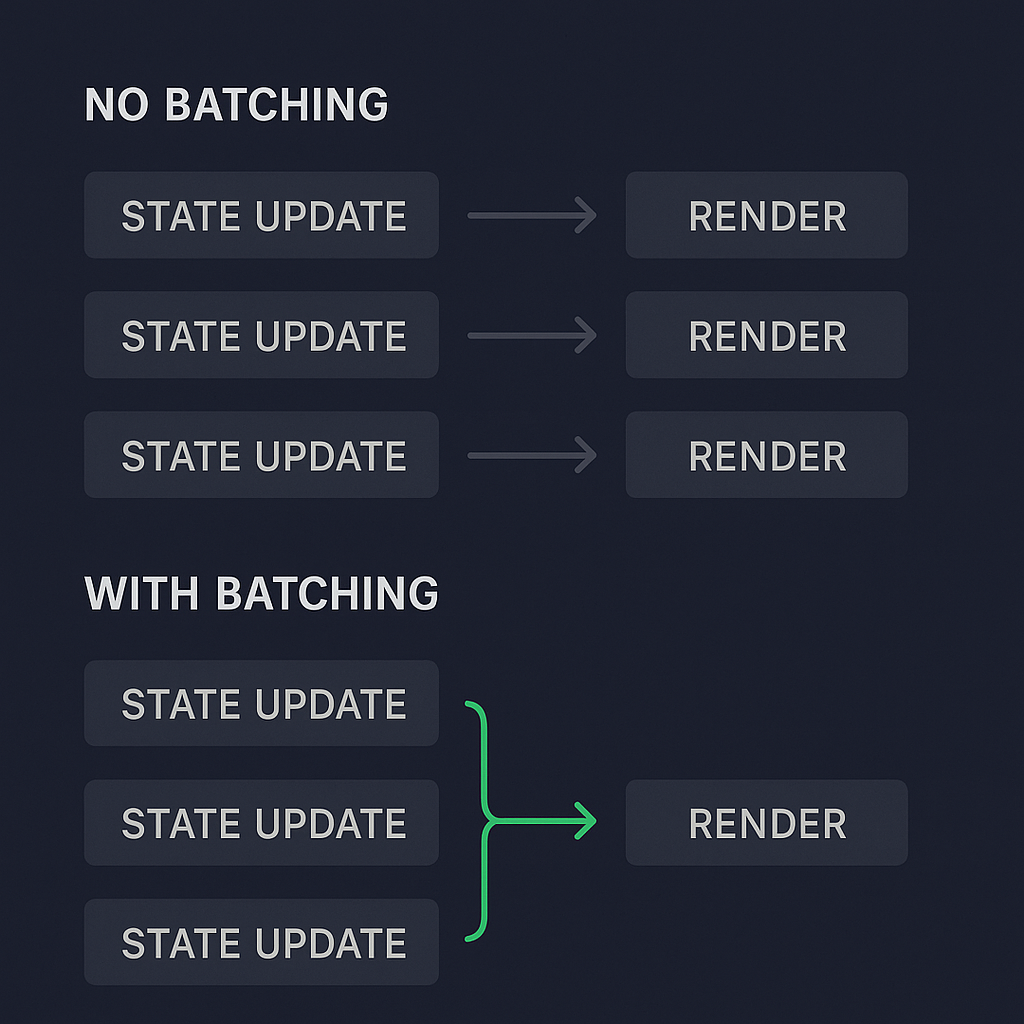
In React, batching means grouping multiple state updates into a single re-render. Before React 18, only updates inside React event handlers were batched. If you did a state change inside a `setTimeout` or a promise, React re-rendered after each update.
React 18 now batches state updates regardless of their source—promises, timeouts, native event handlers all get grouped into one re-render.
  // React 17: two renders, React 18: one render

setTimeout(() => {

  setCount(c => c + 1);

  setFlag(f => !f);

}, 1000);
Benefits? Fewer renders, faster updates, smoother UI.
How Automatic Batching Impacts Virtual DOM & Memoization
By combining multiple state changes, React minimizes the number of Virtual DOM diffs. When you use `React.memo` or `useMemo`, fewer render cycles mean fewer checks against memoized values. The result is a leaner diff process and less CPU work per update.
Real-World Performance Gains
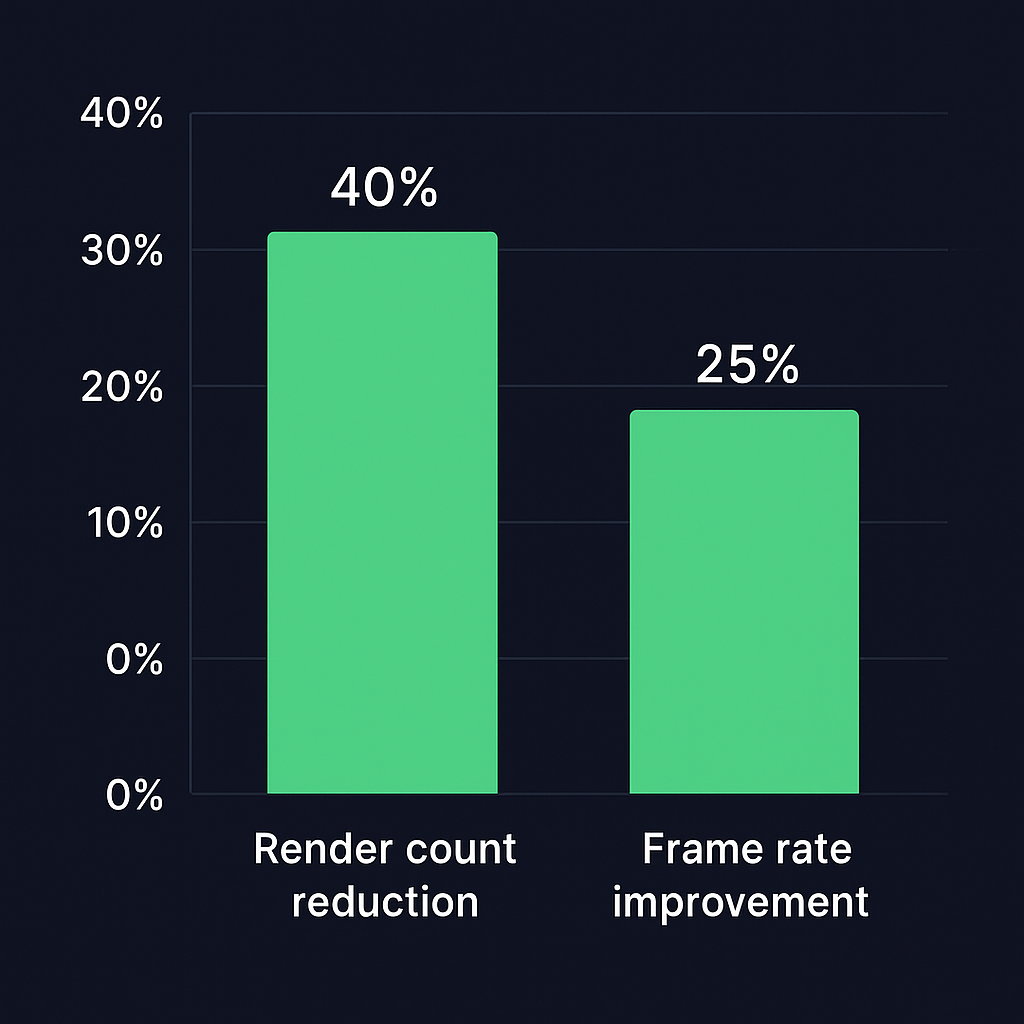
The performance impact of automatic batching varies by app: fewer renders do not necessarily make every interaction faster. Measure render counts and interaction latency in your own app. For background on batching behavior, see LogRocket’s article on React 18 automatic batching. Compare the same interaction before and after an upgrade with the React DevTools Profiler, then check whether responsiveness improves.
Using startTransition and flushSync
React 18 introduced two ways to control update prioritization:
startTransition: For non-urgent updates (such as list filtering or fetching autocomplete results), wrap state changes in `startTransition` so they won’t block urgent updates like typing or clicks.
flushSync: When code must interact with newly rendered DOM before the next line—for example, focusing a conditionally rendered input—wrap the state update that reveals it in `flushSync` from `react-dom`. Ordinary controlled input updates do not need it.
  import { startTransition } from 'react';
import { flushSync } from 'react-dom';

function onClick() {
  flushSync(() => {
    setShowInput(true);
  });

  inputRef.current?.focus();

  startTransition(() => {
    setSearchResults([]);
  });
}
API | Purpose | When to use | Code example |
|---|---|---|---|
flushSync | Forces React to flush updates synchronously | For immediate updates that must be seen by user right away | `flushSync(() => { setValue(''); });` |
startTransition | Marks updates as non-urgent, yielding to higher-priority work | For non-urgent state updates, like filtering or transitions | `startTransition(() => { setList([]); });` |
When to Opt-Out with flushSync
Interfacing with DOM-dependent browser APIs when the API must observe a committed update before continuing—not for ordinary controlled inputs.
Focusing or measuring DOM elements right after a state change.
Use `flushSync` sparingly—overuse can negate the performance benefits of batching. See the React 18 upgrade guide for more details on these new APIs.
Best Practices for Batching State Updates
Group related updates in the same event or callback.
Prefer functional state updates: `setState(prev => new)`.
Avoid interleaving side effects between state calls.
Bullet list of tips:
Use a single state object for deeply related values.
Leverage `useReducer` for complex state logic.
Throttle high-frequency events (e.g., `mousemove`) before updating state.
Monitoring & Debugging Batching Behavior
The React DevTools Profiler can show how many times each component renders and which interactions triggered updates. If you spot unexpected renders:
Check whether a third-party hook or library is calling `setState` outside a React event.
If a component repeats work despite unchanged inputs, check its memoization; batching groups state updates but does not eliminate that work. See our React Compiler guide to automatic memoization for the separate approach.
“Automatic batching solves many performance issues out of the box, but you still need to watch for libraries that bypass React’s event system.” – Dan Abramov, React Team member
Debugging Subtle Issues
Inject custom debug hooks around render logic to log update counts.
Visualize Virtual DOM diffs with tools like why-did-you-render.
Pitfalls & Third-Party Libraries
Some state managers or UI libraries may call native event handlers or timers in ways that preempt React’s batching. When integrating:
Verify that they use React’s event system.
Wrap their callbacks in React events if necessary.
Profile before and after integration to catch regressions.
Batch Size Considerations & User Interactions
It’s not just about batching everything—align updates with user intent:
Debounce real-time data feeds to avoid overwhelming the UI.
Break very large batches into smaller ones if they cause frame drops.
Key Assignment in Lists & Batching Efficiency
Even with batching, improper `key` props can force React to re-create DOM nodes. Always:
Use stable, unique keys per item.
Avoid array indices for keys if items reorder.
Your Path to Smoother React Apps
Automatic batching in React 18 reduces render overhead and plays nicely with memoization and deferred updates. By combining `startTransition`, `flushSync`, proper key usage, and tooling like the DevTools Profiler, you can achieve both immediate feedback and fluid performance—even in complex interfaces. Start batching thoughtfully, measure often, and iterate to keep your UI crisp and responsive.
If rendering problems extend beyond batching, our ReactJS & Next.js development and code audit services can help identify and fix the underlying issues.
:format(webp))
:format(webp))
:format(webp))